Clone Session + Courses, Trial Class Attendees & Exam Candidate Age Limits
We're pleased to share three new features designed to save your team time, reduce manual follow-up, and make managing trial class students easier.
- Clone Session + Courses
- Trial Class Attendees
- Exam Candidate Age Limits
You’ll find more details on each feature below. We hope these updates make your day-to-day admin a little simpler.
Clone Session + Courses
At the start of each new session, term or year, many of your courses remain the same as before, with the same courses, class days and times,
teachers and prices.
Rather than recreating each course one-by-one, you can now use the Clone Session + Courses tool to create a new session and
copy your selected courses, with class dates automatically shifted to fit within the new session.
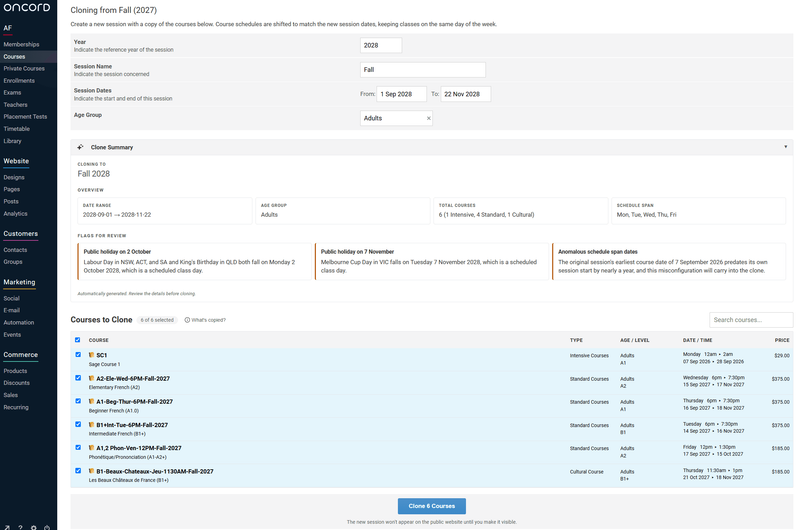
You can find the Clone Session + Courses tool by going to Courses > Configuration > Sessions in the actions menu (3 dots) of any session.
The Clone Session + Courses form opens pre-filled one year ahead, and you can manually edit the session dates if needed.
A Clone Summary shows you what the cloned session will produce, along with flags for review such as public holidays, weekend classes, and courses without a schedule.
Select the courses you want, or search to clone only some of them, and the copy runs in the background while you carry on working.
Cloned courses keep their details, price, type, levels, schedules, teachers, locations, materials and full capacity. Classes stay on the same day of the week, course codes have their year updated automatically (S2026-A1-TUE becomes S2027-A1-TUE), and enrolments, waiting lists and teacher hours start fresh. The new session is created hidden from your website, giving you time to review before you open enrolments.
Trial Attendees for your Classes
Prospective students often want to sit in on a class before committing. You can now add a contact to any course's class list as a trial attendee. The class runs as normal, and the trial attendee appears on the class list and attendance sheet for the teacher, but does not take up a place in the course, does not receive access to the course in the Student Portal, and is not counted as enrolled.
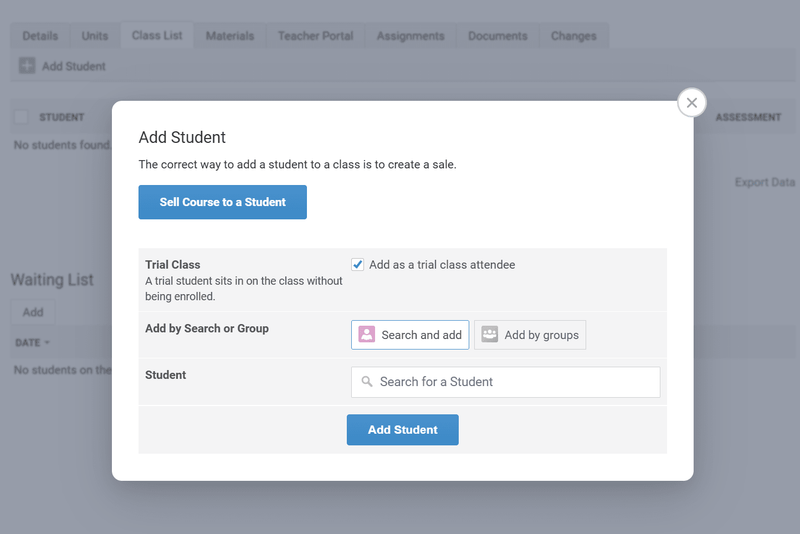
To add a trial attendee, open the course's class list, click Add Student and tick Add as a trial class attendee. Trial attendees are clearly marked with a Trial label on the class list and on the Enrolments page, so your team can see at a glance who is trying a course and follow up with them.
When a trial attendee decides to enrol, simply enrol them as normal. The trial is closed automatically and kept as a record, so the student appears once on the class list with their full enrolment. You can also end a trial at any time from the class list without deleting the history.
Candidate Age Limits for Exams
Some exams are only open to candidates of a certain age. TEF and TCF, for example, require candidates to be at least 16. The new Candidate
Age
setting lets you define that rule once on the exam type, and the online registration form then checks each candidate's date of birth against
it. A candidate who is too young (or too old) sees a clear message and cannot complete the registration, so you no longer need to chase
candidates afterwards to correct a wrong date of birth.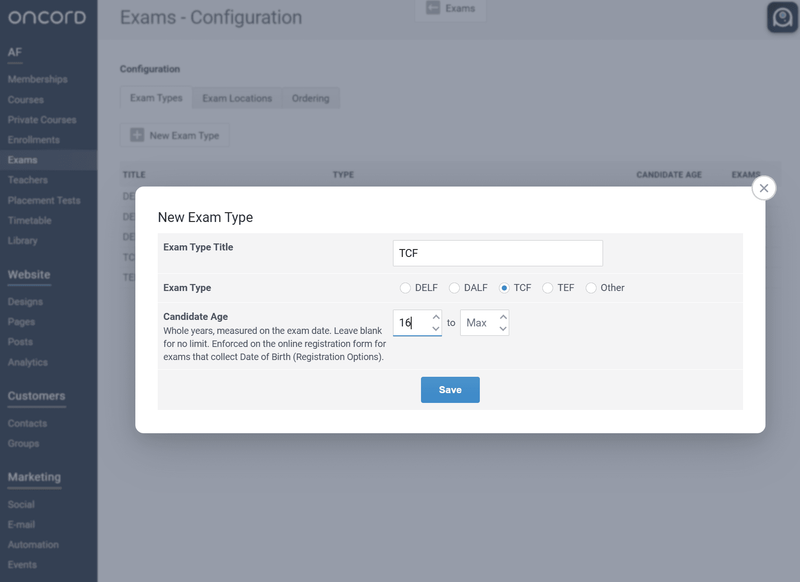
Set a minimum age, a maximum age, or an age bracket under AF > Exams > Configuration > Exam Types. The built-in
TEF and TCF types already come with a minimum age of 16, while DELF and DALF are left open for you to set according to your chapter's
requirements. Because the rule belongs to the exam type, every exam of that type follows it automatically.
Age is measured on the exam start date, so a candidate who turns 16 on the day of the exam is eligible for a 16+ exam. The rule applies to online registrations only. Your staff can still add any candidate from the exam's Candidates tab to handle genuine exceptions. Just make sure Date of Birth is ticked under the exam's Registration Options so the form can perform the check.