
Minimum Days Between Exams
Some exams can't be sat twice within a short period. TCF candidates, for example, must leave at least 30 days between two sittings. Days Between Exams lets you set that rule once on the exam type, and the online registration form then stops a candidate from booking a session that is too close to one they're already registered for. You no longer have to spot the clash and sort out the booking afterwards.
The built-in TCF type already has a 30-day gap set.
Change the number of days, or add a gap to another exam type.
Try to book a second exam of the same type less than the gap away.
Step 1: Check the setting
- Go to AF › Exams.
- Click Configuration in the page header.
- On the Exam Types tab, the Days Between Exams column shows the current rule for each type. 30 means candidates must leave at least 30 days between two exams of that type, and — means no rule.
The built-in TCF type comes with 30 days already set. Other types have no rule until you add one.
Step 2: Adjust the gap on the exam type
- On the Exam Types tab, click the type you want to change (for example TCF).
- In the Days Between Exams row, enter the minimum number of days. Leave it blank to remove the rule.
- Click Save.
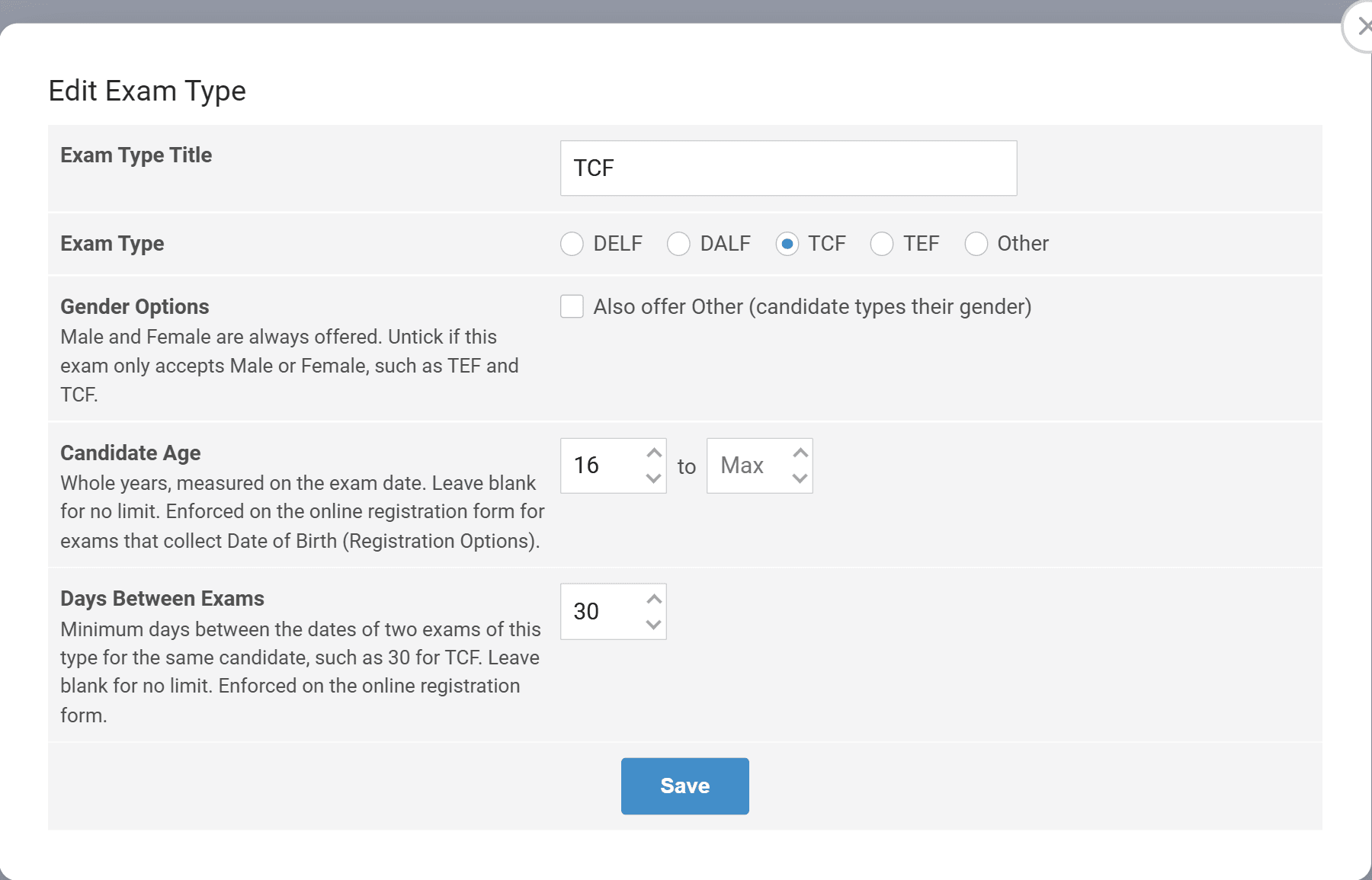
The rule belongs to the type. Every exam of that type follows it, and only exams of the same type are compared, so a TCF and a TEF a week apart are fine. If you've set up separate types (for example TCF Canada and TCF Tout Public), set the gap on each one.
Step 3: Test it
- Log in to your website as a test candidate who is already registered for a TCF exam.
- Open the Exam Selector and choose another TCF exam less than 30 days before or after that one.
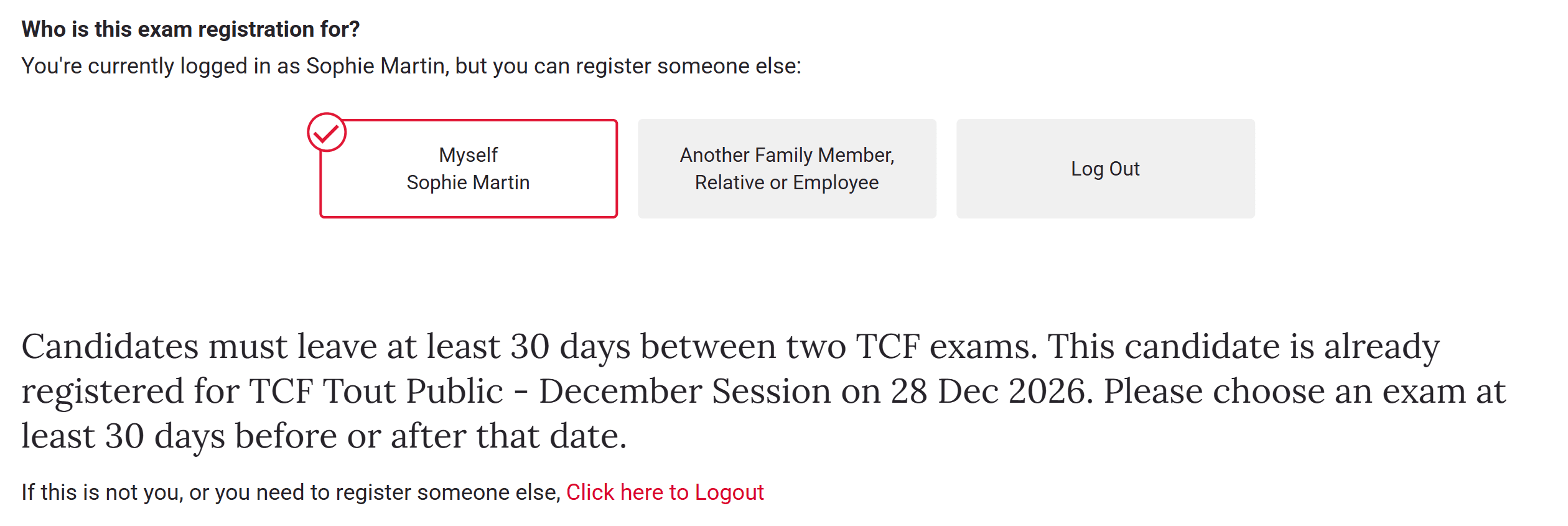
- You should see the message below in place of the registration form. If the form still shows, see Troubleshooting.
What the candidate sees
| # | The candidate… | What happens |
|---|---|---|
| 1 | Is logged in and opens an exam that is too close | The registration form is replaced by a message explaining the rule and naming the exam they're already registered for. |
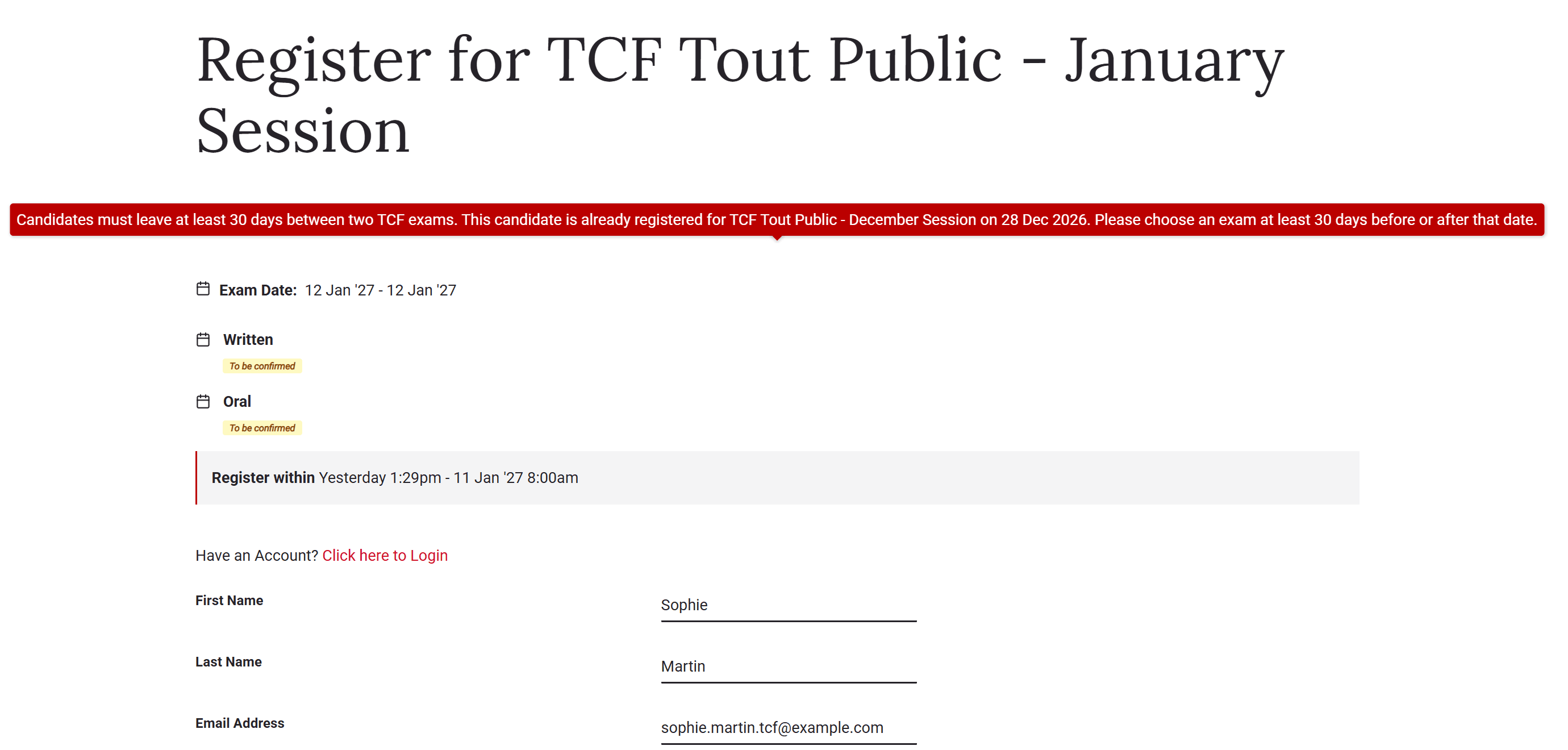
| 2 | Isn't logged in, fills in the form and clicks Confirm Order | The same message appears in red and the form doesn't submit. Candidates are recognised by their email address, so the rule still applies when they don't log in. |
| 3 | Chooses an exam far enough away | They register as normal. |
A logged-in candidate sees the message in place of the registration form:
A candidate who isn't logged in sees it as an error when they click Confirm Order:
The message reads:
Candidates must leave at least 30 days between two TCF exams. This candidate is already registered for [exam] on [date]. Please choose an exam at least 30 days before or after that date.
Nothing is charged and no registration is created when a booking is stopped.
How the gap is counted
- Days are counted between the two exams' start dates, not the day the candidate registers.
- The rule works both ways: an exam 20 days before a booked one is blocked, as well as one 20 days after.
- Past exams count too. A candidate who sat the TCF 10 days ago can't book one 15 days from now.
- Exactly the minimum is allowed. With a 30-day gap, two exams 30 days apart are fine; 29 days apart are not.
Troubleshooting
| Problem | Likely cause | Fix |
|---|---|---|
| Candidates can still book sessions too close together | The exam type has no Days Between Exams set | Set it on the type, as in Step 2 |
| Only some exams are checked | The exams use different exam types | Check each exam's type, and set the gap on every type it should apply to |
| A candidate booked twice anyway | They used a different email address the second time | Candidates are recognised by their contact record or email address. Ask them to use the same email each time |
| The message never appears on your registration page | The exam registration page has been edited in the page editor, so it no longer receives updates | We strongly recommend not editing the Exam Selector or exam registration pages, with the AI assistant or any other way. Get in touch and we'll help restore the standard page |
Frequently asked questions
See also: Candidate Age Limits.