
Make-up Classes
When a student misses a class, you may offer them a seat in another class at the same level so they can catch up. Make-up classes let you add them to that other class's list without enrolling them in it. The teacher sees them and can mark their attendance, but they don't take a place, aren't counted as an enrolment and don't get the extra course in the Student Portal. Their own course and enrolment stay exactly as they are.
Find a class that covers what the student missed.
On that class's Class List, add them as a Make-up class attendee.
Once they've attended, end the make-up from the class list.
Step 1: Pick the class
Find a class that covers the session the student missed, for example the same level on another day. AF › Timetable shows what's running when.
Make-up attendees aren't limited by the class's available places, so you can add one to a class that's sold out. Check there's room in the classroom first.
Step 2: Add the student as a make-up attendee
- Go to AF › Courses and open the class the student will attend (not their own course).
- Open the Class List tab and click Add Student.
- Click Add the student manually without a sale.
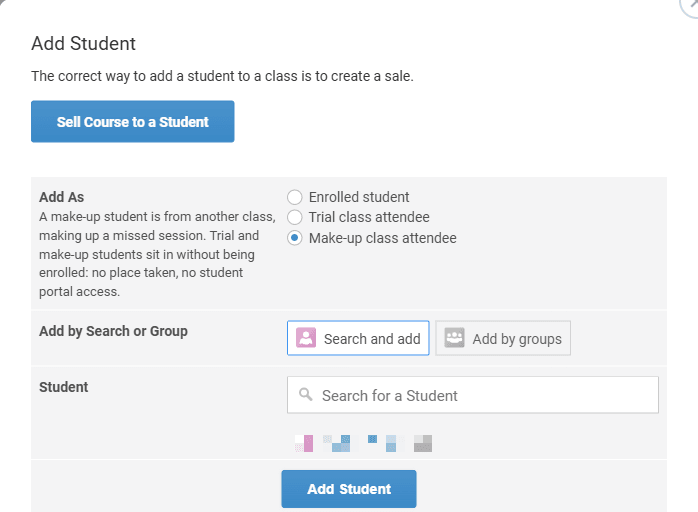
- Under Add As, choose Make-up class attendee.
- Choose Search and add and search for the student, or Add by groups to add everyone in a contact group.
- Click Add Student. You'll see "Make-up student added to the class".
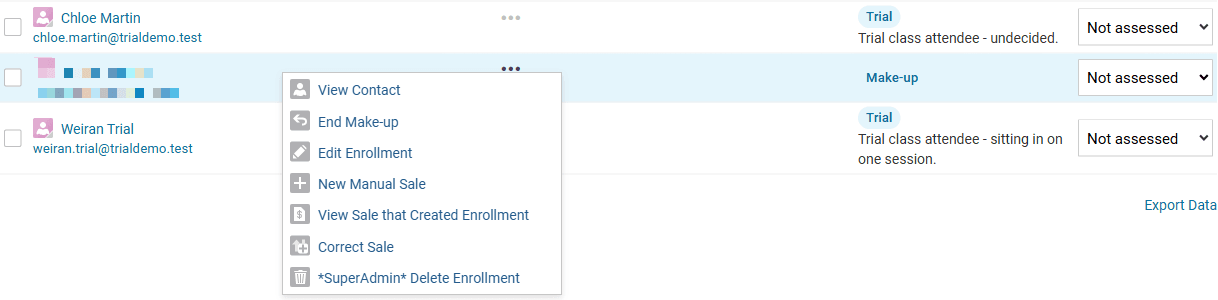
On the class list, the student now shows a Make-up badge in the Enrollment column.
Note which session they're making up. A make-up isn't linked to the student's own course or to the class they missed. To keep a record, open the menu next to their name, choose Edit Enrollment and add an Enrollment Comment such as "Making up 12 March, from A1.1 Tuesday". The comment shows under the badge on the class list.
Make-up classes are for group courses. The Add Student dialog of a private course doesn't have the Add As choice.
What a make-up student gets
| Make-up student | Trial student | Enrolled student | |
|---|---|---|---|
| On the class list and attendance sheet, in the admin and the Teacher Portal | Yes | Yes | Yes |
| Takes a place in the class | No | No | Yes |
| Counted in the course's Enrollments figure | No | No | Yes |
| Access to this course in the Student Portal | No | No | Yes |
| This course's feed, assignment and document emails | No | No | Yes |
| Automations on Enrollments - When someone enrolls in a collective course | No | Yes | Yes |
| Enrolment Statistics | Make-up Attendees | Trial Attendees | Enrolments |
Nothing changes in the student's own course. They keep their place, their Student Portal access and their emails there. An absence you've marked in their own course stays as it is. Mark their attendance in the class they're making up.
Step 3: End the make-up
Once the student has attended, open the menu next to their name on the class list, choose End Make-up and confirm. The badge changes to Make-up ended and the record stays on the class list.
Make-ups don't end on their own. Until you end it, the student stays on this class's list and attendance sheet for every session, as an ongoing make-up.
If the student decides to move to this class for good, sell them the course as usual. Their make-up ends for you when the enrolment is created.
Correcting the type
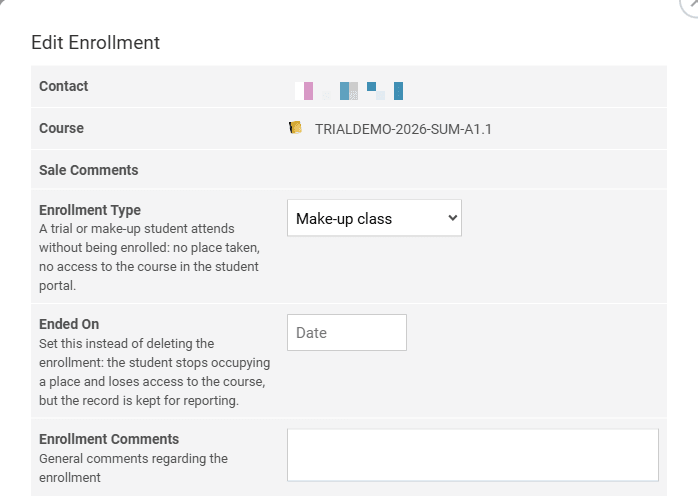
If you added a student with the wrong type, for example as a trial instead of a make-up, open the menu next to their name and choose Edit Enrollment. Change Enrollment Type to Trial class or Make-up class and click Save. The same dialog's Ended On date shows when a make-up or trial was ended. Clear it to make it ongoing again.
Don't use Standard enrollment here to enrol someone. It doesn't create a sale. Sell them the course instead.
Finding make-up students
Go to AF › Enrollments and open the Make-up Classes tab. It lists every make-up, ongoing and ended.

In AF › Enrollments › Statistics, make-ups are counted in Make-up Attendees only. They're left out of Total Enrollments, Hours Sold, Students and the trial conversion figures. A make-up also doesn't count as an earlier enrolment in the New or Returning Student filter, so a new student who made up a class elsewhere still shows as new.
Troubleshooting
| Problem | Likely cause | Fix |
|---|---|---|
| The student wasn't added to the class | They're already enrolled in that class, or already on an ongoing make-up in it | Check the class list. Nothing more needs adding |
| The student is on every session's attendance sheet | The make-up was never ended | Choose End Make-up from the menu next to their name |
| The student received the class's welcome email | They were added as a trial or enrolled student, not a make-up | Correct the type in Edit Enrollment, and choose Make-up class attendee next time. Make-up attendees don't run enrolment automations |
| The student can't see this class in the Student Portal | Make-up attendees don't get Student Portal access to the class | Expected. Their own course is unaffected |
Frequently asked questions
See also: Trial Classes, Enrolment Statistics.