
Repeating Timetable Events
Exam sessions, workshops, room bookings and closures often happen on the same days every week. Rather than adding each date to the Timetable by hand, you can create a repeating timetable event: choose the days of the week and an end date, and the Timetable creates one event for every date. Later you can change or delete a single date, every date from one onwards, or the whole series.
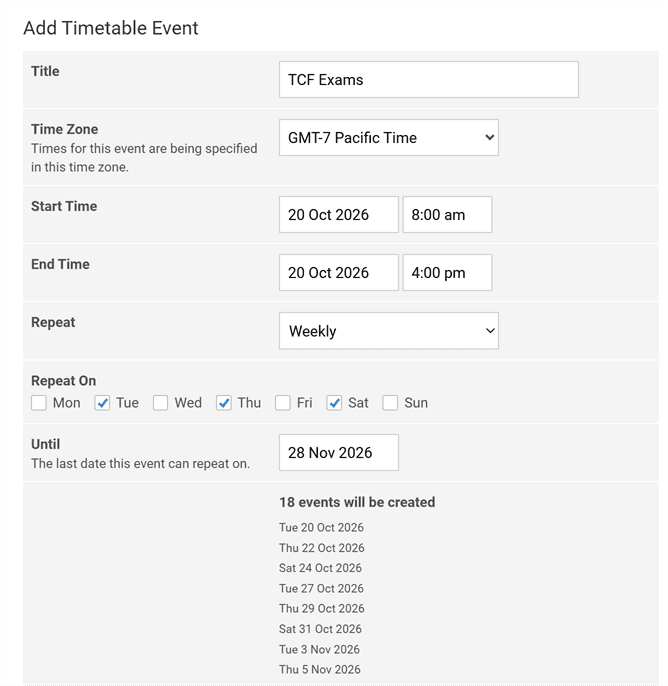
Add a New Timetable Event and set Repeat to Weekly.
The dialog lists every event it will create before you save.
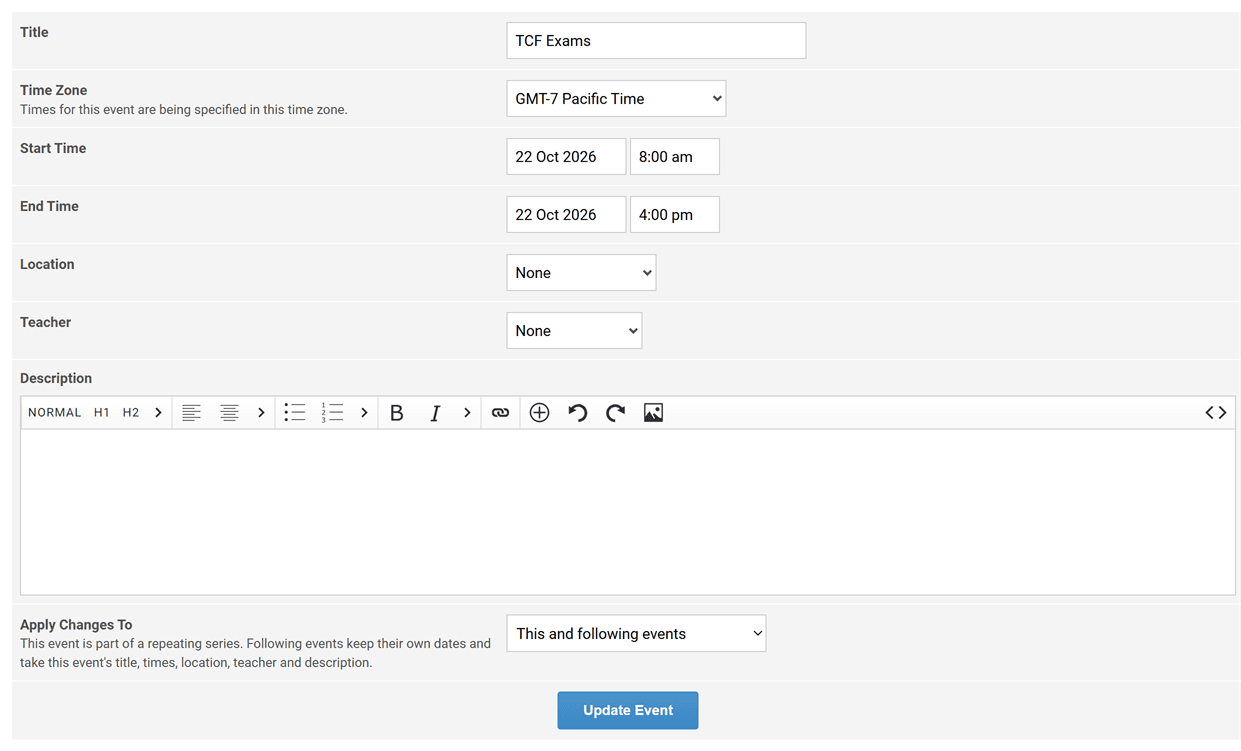
Edit one event, the following events, or the whole series.
Where to find it
- Go to AF › Timetable.
- Click New Timetable Event in the page header.
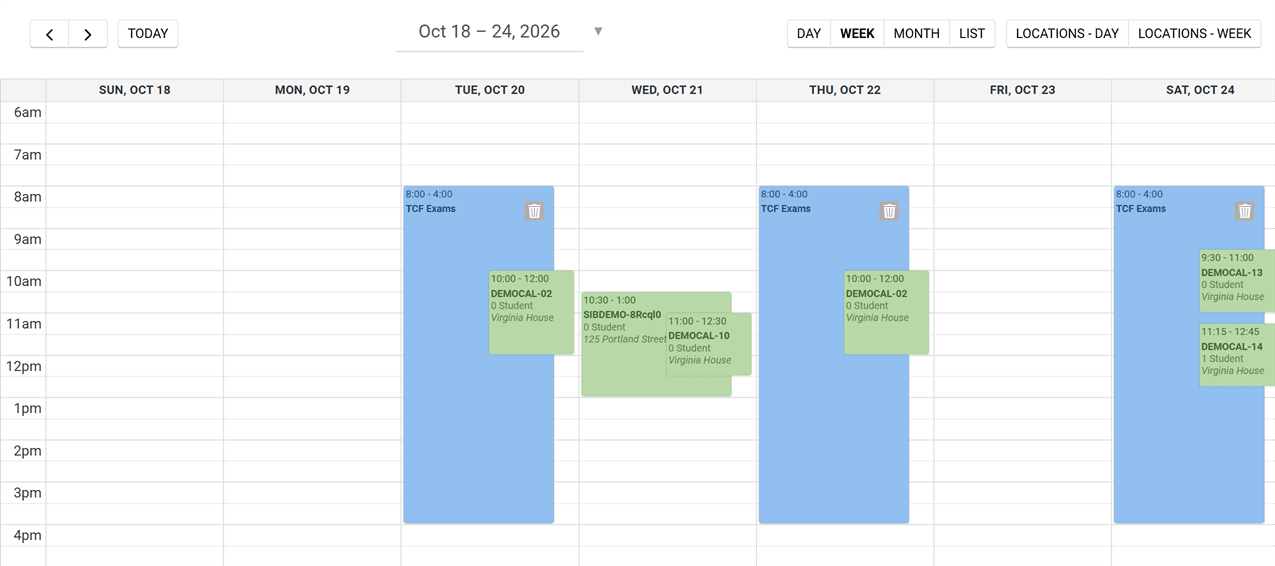
Timetable events only show on the calendar when Timetable events is turned on in the Timetable's filters.
Step 1: Create the repeating event
Fill in the event as usual, then set it to repeat:
- Title - The name shown on the Timetable, for example "TCF Exams".
- Time Zone - The time zone the start and end times are entered in. Defaults to your website's time zone.
- Start Time and End Time - The date and times of the first event.
- Repeat - Choose Weekly. Leave it on Does not repeat for a one-off event.
- Repeat On - Tick each day of the week the event happens on. The day of the start date is ticked for you.
- Until - The last date an event can fall on.
- Location and Teacher - Optional, but they change how the event is treated. See Location and teacher below.
- Description - Optional details about the event.
Click Save Event. You'll see how many events were created, for example "18 Timetable Events Created Successfully".
Step 2: Check the dates
Once you've ticked the days and set Until, the dialog shows how many events will be created (for example "18 events will be created") and lists every date. The list updates as you change the start date, the days or the end date, so check it before you save.
- The first event is on the start date only if that day is ticked. If you untick it, the series starts on the next ticked day.
- Times stay the same all year. An event at 8:00 am stays at 8:00 am on every date, including after a daylight saving change.
- A series can have up to 366 events. If you go over, you'll see "A repeating event can create at most 366 events. Please choose an earlier end date." Create a second series for the dates after that.
Every date is a separate event on the Timetable, so each one can be opened, moved or deleted on its own.
Location and teacher
Whether an event has a Location or a Teacher decides what it clashes with and who sees it. This applies to every timetable event, but it matters most for a repeating one, because it applies to every date.
| Location | Teacher | The event is treated as | Classes flagged as conflicts | Student Portal timetable | Teacher Portal timetable |
|---|---|---|---|---|---|
| Not set | Not set | A holiday or closure | Every class at that time ("In conflict with 1 holiday") | Shown to every student | Shown to every teacher |
| Set | Not set | A room booking | Classes in that location at that time | Not shown | Shown under All teachers |
| Either | Set | Part of a teacher's schedule | That teacher's classes at that time, and classes in its location if one is set | Not shown | Shown to that teacher |
Leave both empty only for a closure. An exam series with no location and no teacher is treated as a holiday: every class running at the same time is flagged as a conflict, and the event appears in every student's timetable. Set the Location of the exam room, and only classes in that room are flagged.
Step 3: Change one event or the rest of the series
Click the event's title on the Timetable to open it. If it's part of a repeating series, Apply Changes To appears above Update Event:
- This event only - Changes just this date.
- This and following events - Saves this event, then copies its title, times, location, teacher and description to every later event in the series. Each later event keeps its own date.
Click Update Event. You'll see how many events were updated.
- Earlier events in the series are never changed.
- This and following events copies the times, not the date. If you change this event's date, only this event moves. To move the series to other days, delete the following events and create a new series.
- Dragging or resizing an event on the calendar only changes that one event. Use Undo in the message that appears if you moved it by mistake.
- An event you changed with This event only is still part of the series, so a later This and following events from an earlier date overwrites it.
Delete events in a series
On the Timetable, click the bin icon on the event. For an event in a repeating series, choose what to delete:
- This event only
- This and following events
- All events in the series
Click Confirm Delete.
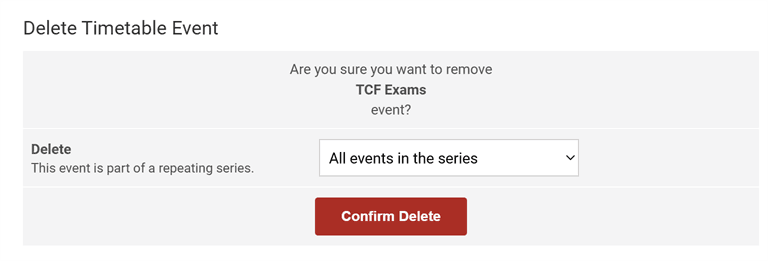
To end a series early, open the first date you no longer need and delete This and following events. To extend a series, create a new repeating event that starts after its last date.
Troubleshooting
| Problem | Likely cause | Fix |
|---|---|---|
| The events don't show on the Timetable | Timetable events is turned off in the Timetable's filters | Turn on Timetable events |
| "No dates match" | None of the ticked days fall between the start date and Until | Tick at least one day, or move Until later |
| "A repeating event can create at most 366 events" | Until is too far away for the days ticked | Choose an earlier Until date and create a second series for the rest |
| Every class at that time now shows "In conflict with 1 holiday" | The event has no location and no teacher, so it's treated as a closure | Open it, set the Location, and apply the change to This and following events |
| Students see the event in their Student Portal timetable | Same as above | Set a Location or Teacher |
| Apply Changes To doesn't appear | The event isn't part of a series, or it's the only event left in its series | Edit it as a single event |
Frequently asked questions
See also: Student Portal Timetable, Teacher Availability.