
Trial Classes
Many people want to try a class before they pay for a whole term. Trial classes let you put them on a class list without enrolling them. The teacher sees them and can mark their attendance, but they don't take a place in the class, don't get the course in the Student Portal and aren't counted as an enrolment in your statistics. If they then enrol, the trial is closed for you and counted as a conversion, so you can see how many trial students go on to enrol.
On the course's Class List, add them as a Trial class attendee.
They're on the class list and attendance sheet with a Trial badge.
Sell them the course, or end the trial if they don't continue.
Step 1: Add a trial student to the class
- Go to AF › Courses and open the course the student wants to try.
- Open the Class List tab and click Add Student.
- Click Add the student manually without a sale.
- Under Add As, choose Trial class attendee.
- Choose Search and add and search for the student, or Add by groups to add everyone in a contact group. You can add several students at once.
- Click Add Student. You'll see "Trial student added to the class".
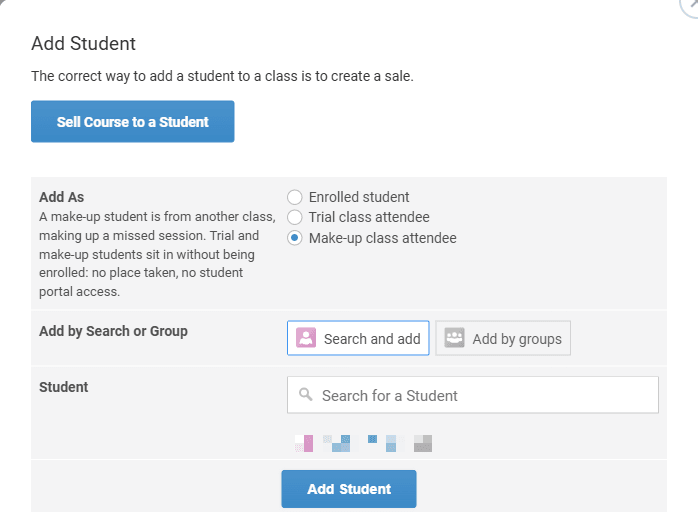
The student needs a contact record. The search finds existing contacts, so create the contact in Customers › Contacts first if they're new to you.
A student who is already enrolled in the class, or already on a trial in it, isn't added a second time. Trial classes are for group courses. The Add Student dialog of a private course doesn't have the Add As choice.
Step 2: The trial class
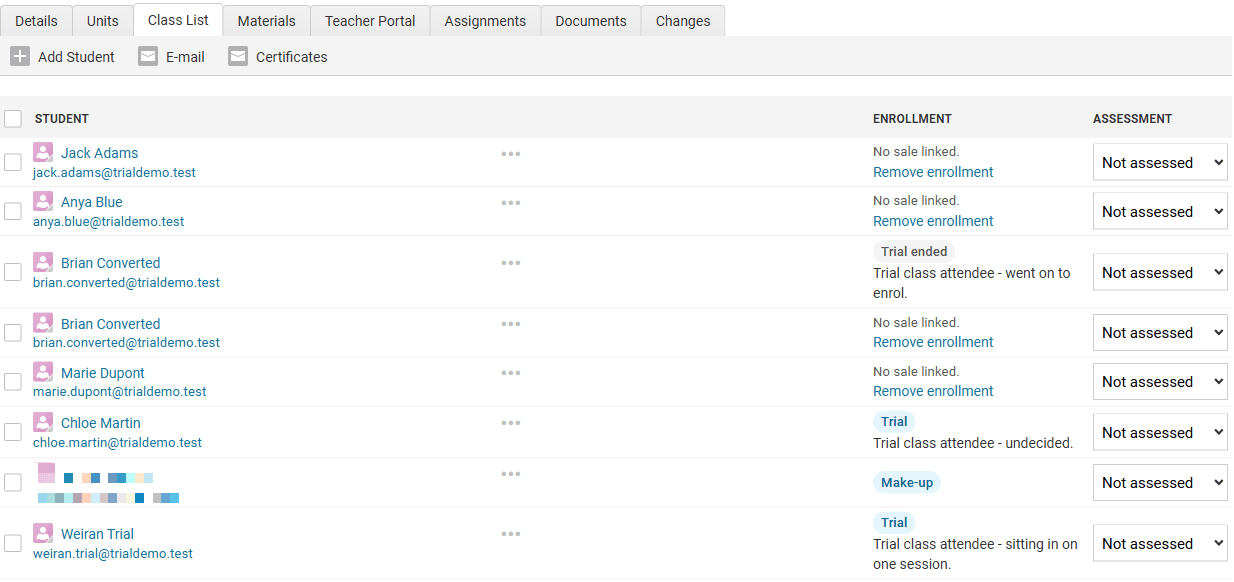
On the Class List, a trial student shows a Trial badge in the Enrollment column. Hover over the badge for a reminder that they don't occupy a place. To note something about the trial, such as which session they're attending, open the menu next to their name, choose Edit Enrollment and fill in Enrollment Comments. The comment shows under the badge.
What a trial student gets
| Trial student | Enrolled student | |
|---|---|---|
| On the class list and attendance sheet, in the admin and the Teacher Portal | Yes | Yes |
| Takes a place in the class | No | Yes |
| Counted in the course's Enrollments figure | No | Yes |
| Access to the course in the Student Portal | No | Yes |
| Course feed, assignment and document emails | No | Yes |
| Automations on Enrollments - When someone enrolls in a collective course | Yes | Yes |
| Enrolment Statistics | Counted as a Trial Attendee | Counted as an enrolment |
Enrolment automations run for trials too. If you have an automation on Enrollments - When someone enrolls in a collective course (a welcome email, for example), trial students receive it when you add them. Check that the email makes sense for someone who is only trying the class.
Step 3: Enrol the student or end the trial
If they enrol
Sell them the course as usual: online through the Course Selector, or with a manual sale (Sell Course to a Student in the Add Student dialog, or New Manual Sale in the menu next to their name).
When the enrolment is created, the trial ends for you. The class list then shows the student twice: once as an enrolled student, and once with a Trial ended badge. The ended trial is the record that they trialled the class first, and it's what the conversion figures are counted from.
If they don't continue
Open the menu next to the student's name, choose End Trial and confirm. The student stays on the class list with a Trial ended badge.
Trials don't end on their own when the class date passes. End them once the trial is over, or the student stays on the class list and attendance sheet as an ongoing trial.
Ending isn't deleting. An ended trial stays on the class list and in your statistics, which is how the conversion rate is worked out.
Trials in your statistics
Go to AF › Enrollments and click Statistics in the page header. For group (collective) course selections, the Enrollments section shows:
- Trial Attendees - The trial students in the selected courses.
- Trials Converted - How many of those trial students enrolled in the same course, with the conversion rate as a percentage.
- Make-up Attendees - Students sitting in to make up a missed class. See Make-up Classes.
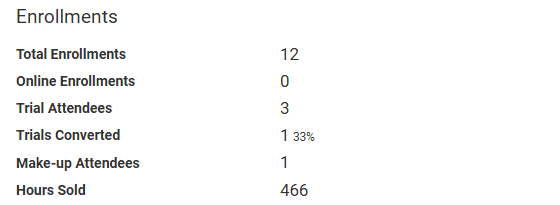
Trial and make-up attendees aren't counted anywhere else on the page. Total Enrollments, Hours Sold, Students and New Students only count real enrolments, so adding trials doesn't inflate them.
Add the trial to the course they're likely to join. A trial only counts as converted when the student enrols in the course they trialled. If someone trials the Tuesday A1 class and then enrols in the Thursday A1 class, they show as a trial attendee who didn't convert.
Finding your trial students
Go to AF › Enrollments and open the Trials tab. It lists every trial, ongoing and ended, with a Trial or Trial ended badge.

Troubleshooting
| Problem | Likely cause | Fix |
|---|---|---|
| The student wasn't added to the class | They're already enrolled in the class, or already on a trial in it | Check the class list. Nothing more needs adding |
| The student still shows as Trial after the class | Trials don't end on their own | Choose End Trial from the menu next to their name |
| A trial student received the welcome email | An automation uses Enrollments - When someone enrolls in a collective course, which runs for trials | Word the email so it suits trial students too |
| Trials Converted shows 0 although the student enrolled | They enrolled in a different course from the one they trialled | Conversions are only counted for the same course. Add future trials to the course the student is likely to join |
| The trial student can't see the course in the Student Portal | Trial students don't get Student Portal access to the course | Expected. Access comes with the enrolment |
Frequently asked questions
See also: Make-up Classes, Enrolment Statistics.